The easiest way to handle Windows-based Pop-ups (such as Print or File Upload pop-ups) would be to simulate a ESCAPE key press using the robot and ignore it.
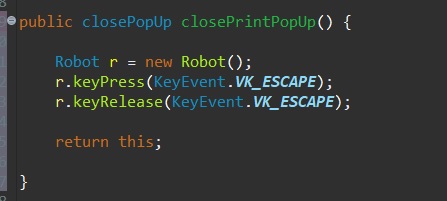
This method is very easy to apply but there is a very big chance that it is not going to work if you schedule and run your tests in Jenkins. Fortunately with AutoIT, you can handle Print pop-ups in your tests, scheduled on Jenkins.
Firstly, you should download AutoIT and AutoIT Script Editor here.
After installing AutoIT and AutoIT Script Editor go to Program Files and open them.
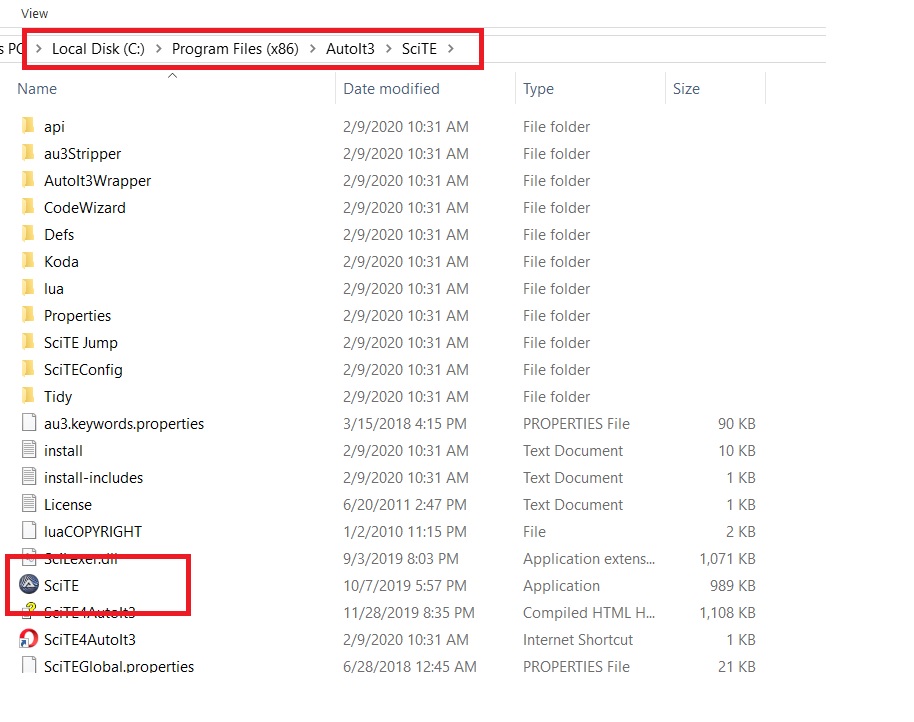
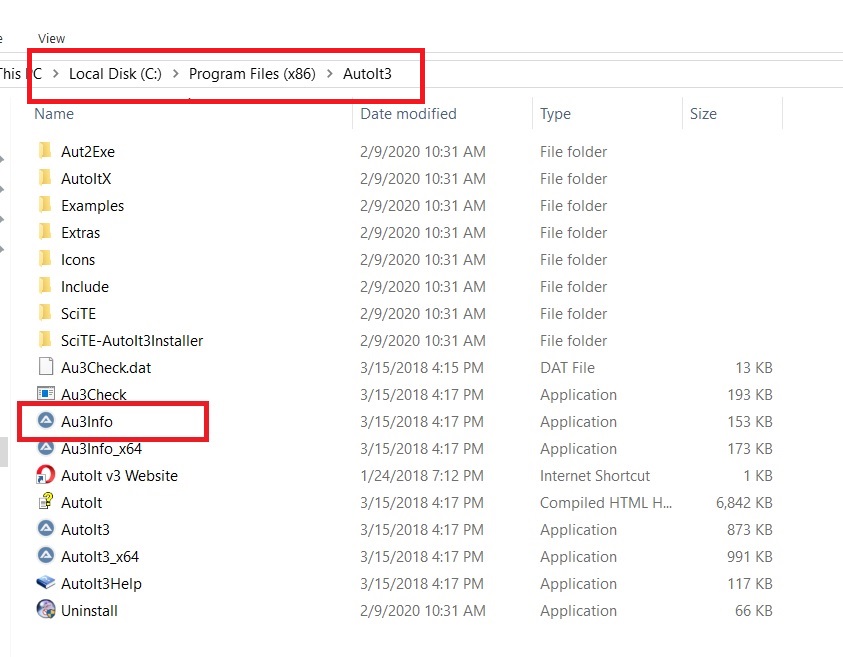
Now, your Desktop should look like this:
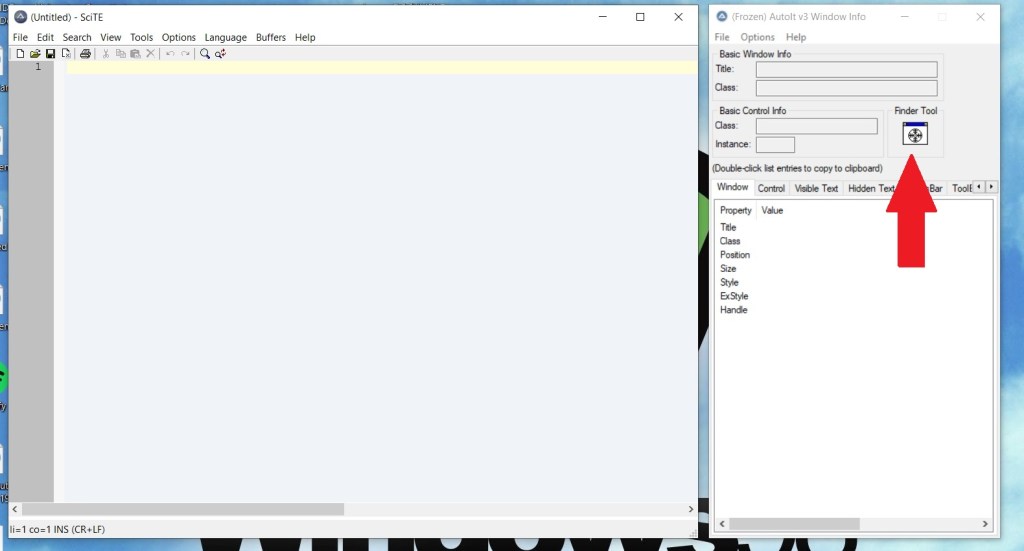
As shown above, the red arrow aims to ‘Finder Tool’ which we use to relocate elements. All you have to do is to click, hover and drop it on to the element of your choice.
Let’s use it on the ‘Cancel’ button of Mozilla’s Print Pop-up.
We need the ‘Title’, ‘class’ and ‘Instance’ values of the cancel button in order to write a basic script that simulates a click on it.
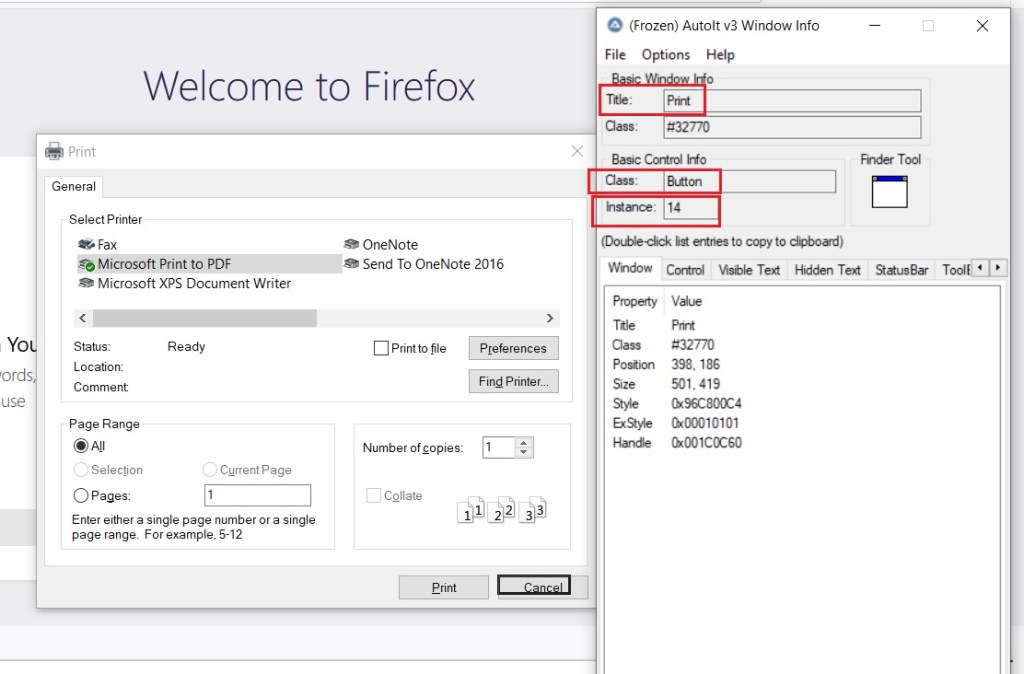
Take these values and use them in your AutoIT script.
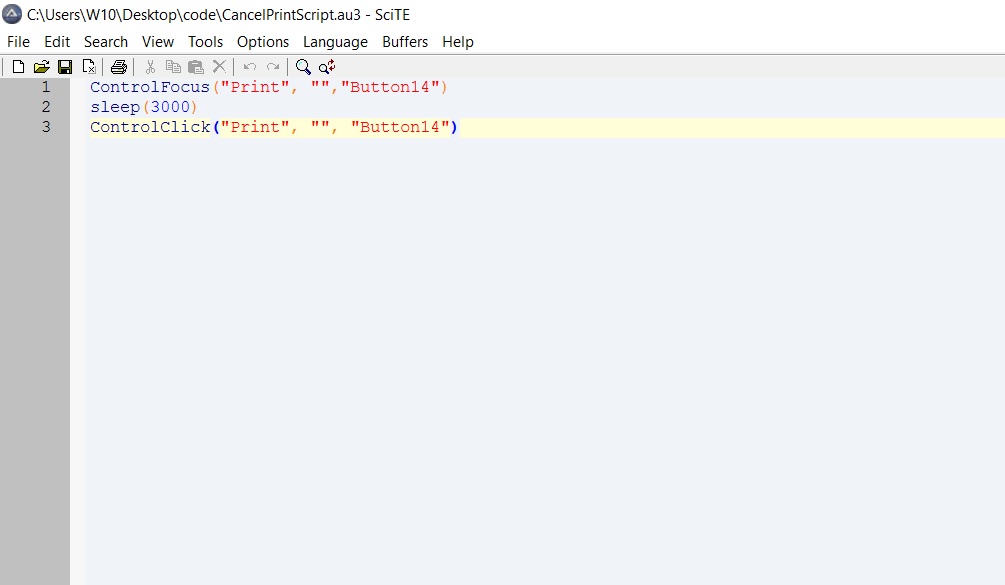
Then, click on File > Save as > save your script as .au3 file. Then, Find this file on your PC and right click > Compile Script (x64) (or x86). This operation creates a .exe file that can be used in your Project.
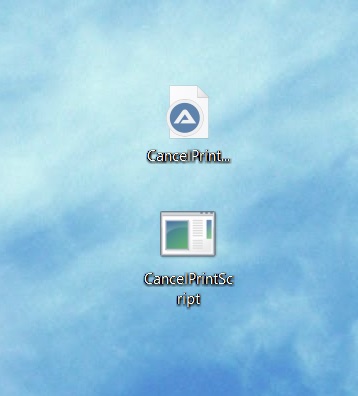
Add the code below in your project and call it method whenever you want to close the Print Pop-up.

 testautomation.car.blog